
89 lines
1.7 KiB
Markdown
89 lines
1.7 KiB
Markdown
# Windows 平台安装 Node.js
|
||
|
||
**三大 AI 编程工具的必备运行环境**
|
||
|
||
💡 重要说明
|
||
|
||
Claude Code、CodeX 和 Gemini CLI 都需要 Node.js 18+ 运行环境。 如果您已安装 Node.js 18 或更高版本,可跳过本章节。 验证命令:`node -v`
|
||
|
||
## 方法一:官方安装包(推荐)
|
||
|
||
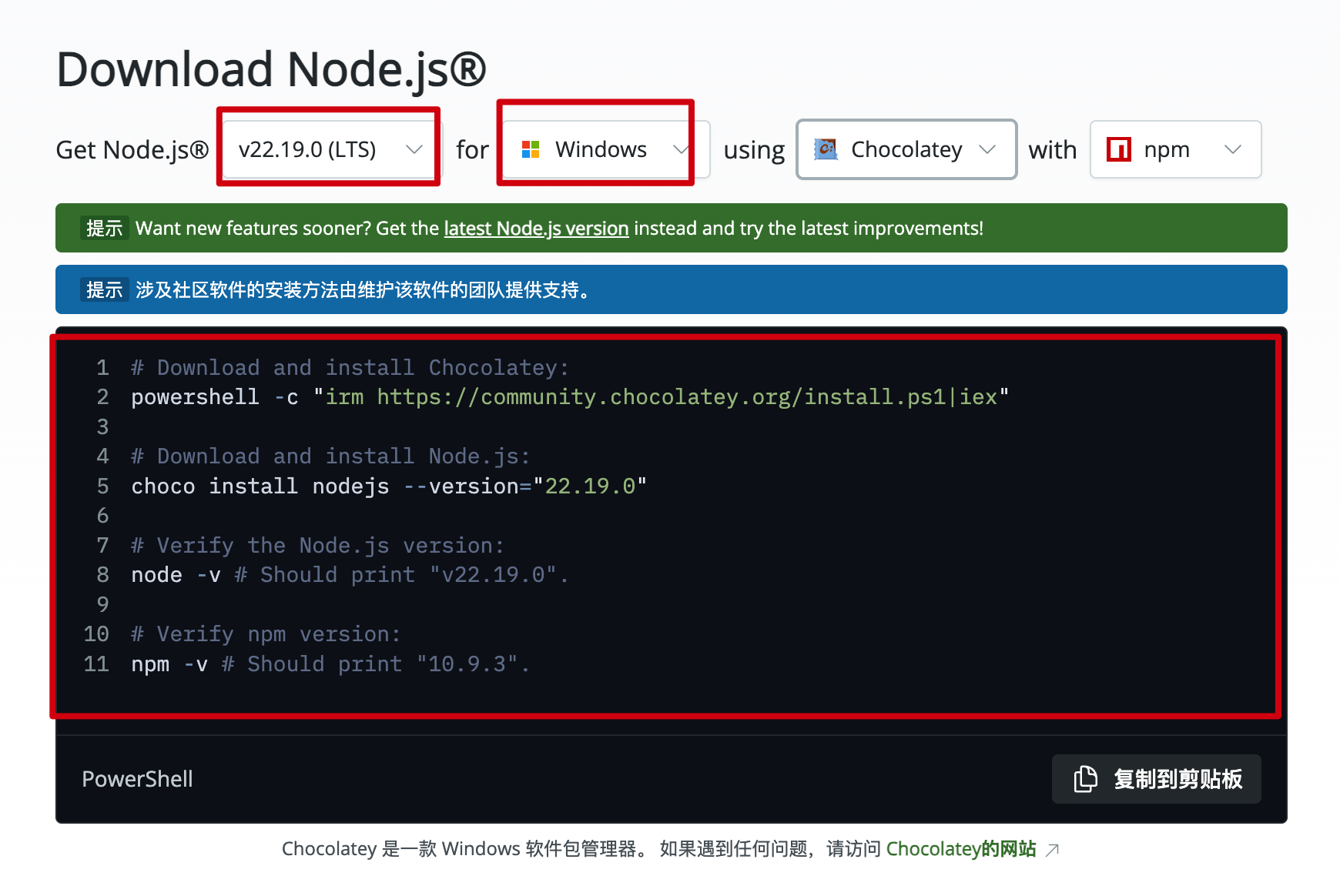
1. 访问 Node.js 官网:<https://nodejs.org/zh-cn/download>
|
||
2. 下载 LTS(长期支持)版本的 Windows Installer (.msi)
|
||
3. 运行安装包,采用默认配置完成安装
|
||
4. 安装程序会自动配置系统 PATH 环境变量
|
||
|
||
|
||
|
||
## 方法二:包管理器安装
|
||
|
||
### 使用 Winget
|
||
|
||
Windows 11 或 Windows 10 最新版:
|
||
|
||
powershell
|
||
|
||
|
||
winget install OpenJS.NodeJS.LTS
|
||
|
||
1
|
||
|
||
### 使用 Chocolatey
|
||
|
||
需先安装 Chocolatey:
|
||
|
||
powershell
|
||
|
||
|
||
choco install nodejs-lts
|
||
|
||
1
|
||
|
||
### 使用 Scoop
|
||
|
||
powershell
|
||
|
||
|
||
scoop install nodejs-lts
|
||
|
||
1
|
||
|
||
## 验证安装
|
||
|
||
打开命令提示符或 PowerShell,执行:
|
||
|
||
powershell
|
||
|
||
|
||
node --version
|
||
npm --version
|
||
|
||
1
|
||
2
|
||
|
||
如果显示版本号(如 v18.x.x 或更高),说明安装成功。
|
||
|
||
## 常见问题
|
||
|
||
### 提示"不是内部或外部命令"
|
||
|
||
* 重新打开终端窗口
|
||
* 检查 PATH 环境变量是否包含 Node.js 路径
|
||
* 重启电脑后再试
|
||
|
||
### 安装失败
|
||
|
||
* 以管理员身份运行安装程序
|
||
* 关闭杀毒软件后重试
|
||
* 检查系统盘空间是否充足
|
||
|
||
## 下一步
|
||
|
||
✅ 环境准备完成!
|
||
|
||
现在您可以继续安装 Claude Code、CodeX 或 Gemini CLI 了。
|
||
|
||
* [返回环境安装总览](</node/windows>)
|
||
* [安装 Claude Code](</deploy/claude-code>)
|
||
* [使用 CC-Switch 工具](</tools/cc-switch>)
|